



























































Enjoy 20% Off and Free Delivery on Your First Order!

File Prep 101: Resolution, Bleed & CMYK vs RGB Explained

In commercial printing and custom packaging across the United States, the bridge between creative concept and mechanical manufacturing is the digital production file. Graphic designers, marketing managers, and brand founders regularly design stunning assets on digital monitors, only to receive finished print runs with blurry typography, clipped text, unexpected color shifts, or faint white lines framing their artwork. These costly issues rarely stem from press malfunctions; in almost all cases, they trace back to prepress errors in the source artwork. Generating verified print ready files requires a fundamental understanding of physical board mechanics, raster versus vector assets, and ink layering chemistry.

Submitting files configured for web display to an industrial printing press creates production delays, wasted substrate inventory, and degraded brand credibility. Mastering a thorough bleed and resolution guide, alongside understanding the physics of CMYK vs RGB printing, transforms guesswork into repeatable manufacturing accuracy.

By calculating physical dimensions strictly in inches, locking in 300 DPI raster thresholds, extending 0.125-inch mechanical bleeds, and converting artwork to native subtractive color spaces, commercial print buyers throughout the United States can streamline their file prep for printing and guarantee sharp, consistent results on press.

The Three Boundary Zones: Bleed, Trim, and Safe Margins Explained

The most frequent mechanical failure in prepress occurs when artwork is designed exactly to the finished trim dimensions without accounting for industrial finishing tolerances. Automated guillotine cutters and high-speed rotary die-cutters trim thousands of sheets per hour. Even with digital optical sensors, paper stocks expand, contract, and shift by fractions of an inch under blade pressure.

To eliminate finishing defects, every commercial artwork file must be structured into three distinct concentric zones calculated in inches:

  • The Trim Line (Finished Product Dimensions): The exact mechanical boundary where the physical blade cuts or the rotary steel die scores the paperboard. For example, a standard US business card has a trim dimension of precisely 3.5 inches x 2.0 inches.
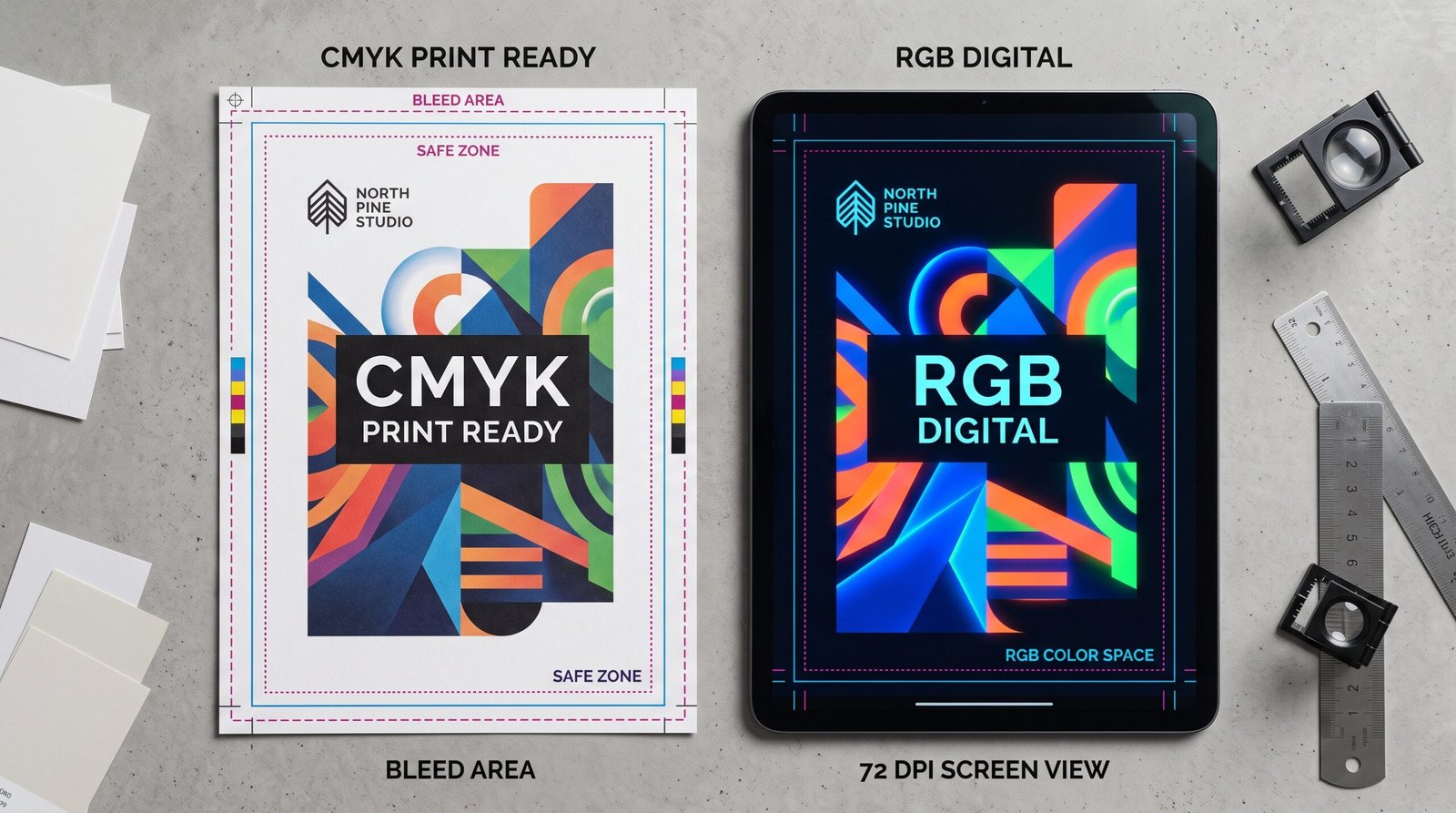
  • The Bleed Line (0.125 Inches Past Trim): Any background color, photograph, or graphic element that touches the perimeter of the final piece must extend a minimum of 0.125 inches (1/8-inch) past the trim line on all four sides. If the paper shifts slightly during cutting, the blade trims through continuous ink rather than exposing raw, unprinted white paper fibers. A 3.5″ x 2.0″ card with bleed must be submitted with an artboard size of 3.75″ x 2.25″.
  • The Safe Zone Margin (0.125 to 0.25 Inches Inside Trim): High-speed cutting blades can pull or push the top sheets of a paper lift. To prevent critical typography, phone numbers, scannable barcodes, and brand marks from being clipped or resting uncomfortably close to the edge, keep all vital content at least 0.125 inches (or 0.25 inches for packaging and multi-page books) inside the cut contour.

Color Models: The Fundamental Physics of CMYK vs. RGB

Color reproduction differences between desktop computer screens and physical press sheets represent the largest source of visual confusion for novice print buyers. The issue comes down to two contradictory optical color systems:

  • The Additive RGB Model: Digital monitors, smart devices, and cameras produce color by projecting varying intensities of Red, Green, and Blue light directly into the human eye. Combining all three wavelengths at maximum power yields pure white light. Because RGB utilizes active illumination, it can render ultra-bright, neon, and electric shades that do not exist in the physical world of pigment.
  • The Subtractive CMYK Model: Commercial offset, digital, and flexographic presses lay micro-droplets of physical ink—Cyan, Magenta, Yellow, and Key/Black—onto white paperboard. Rather than emitting light, ink absorbs (subtracts) specific light wavelengths and reflects the remaining spectrum back to the viewer. When all three primary inks combine, impurities in real-world pigments produce a dark muddy brown; thus, pure black carbon ink (K) is added to provide shadow density and crisp text definition.
  • The Out-of-Gamut Shift: If an RGB file is sent to a commercial press without manual calibration, the RIP (Raster Image Processor) software automatically forces out-of-gamut neon RGB values into the closest available CMYK pigment match. This causes vivid neon greens, electric blues, and fiery oranges to shift into duller, muted olive, navy, and rust tones. Designing in native CMYK from the start ensures what you see on a calibrated monitor closely mirrors physical press sheets.

Side-by-Side Breakdown: CMYK vs. RGB Technical Profiles

Parameter CMYK (Commercial Print) RGB (Digital Media)
Primary Medium Paperboard, corrugated cardboard, vinyl, textiles LED monitors, mobile phones, television displays
Color Generation Method Subtractive (Pigment absorbs & reflects light) Additive (Phosphors & LEDs project colored light)
Primary Color Channels Cyan, Magenta, Yellow, Black (Key) Red, Green, Blue
Maximum Saturation Range Constrained to physical pigment absorption Broad spectrum of luminous, high-chroma tones
Standard File Formats Press-Ready PDF/X-1a, PDF/X-4, TIFF, EPS JPEG, PNG, GIF, SVG, WebP
Pure White Representation The unprinted white base of the paperboard All pixels firing at maximum values (R=255, G=255, B=255)
Standard Black Typography 100% K Only (C=0, M=0, Y=0, K=100) Composite Black (R=0, G=0, B=0)

Resolution Physics: DPI vs. PPI and the 300 DPI Standard

A digital file viewed on a screen can appear sharp and crisp while being completely unusable for commercial print production. This is because digital screens operate at lower pixel densities than commercial plate-setters and digital print engines:

  • PPI (Pixels Per Inch): Measures the density of square picture elements displayed across a digital screen monitor. Standard desktop monitors historically display at 72 PPI to 96 PPI, while modern high-density mobile screens display at 200 to 450+ PPI.
  • DPI (Dots Per Inch): Measures the physical micro-droplets of ink that an industrial printing press deposits within a linear inch on a paper surface.
  • The 300 DPI Rule at 100% Scale: The universal standard for commercial offset and small-format digital printing is 300 DPI at actual printed size. If a 72 PPI web graphic is placed into a print layout and scaled up, the printer must enlarge those few pixels across physical space. The result is “pixelation”—jagged, blurry edges and muddy tonal transitions.
  • Viewing Distance Exceptions (Large-Format Signage): As viewing distance increases, the human eye cannot resolve individual dots. Outdoor billboards and vinyl banners do not require 300 DPI files, which create sluggish multi-gigabyte files. Use these resolution targets at 100% scale:
    • Handheld Collateral (Cards, Brochures, Packaging): 300 DPI minimum.
    • Point-of-Purchase Signage (Viewed from 3 to 6 Feet): 150 to 200 DPI.
    • Outdoor Banners & Scaffolding (Viewed from 10 to 30+ Feet): 72 to 100 DPI.

Vector vs. Raster: The Golden Rule of Commercial Artwork

Every visual element in a graphic layout belongs to one of two structural classes:
  • Raster Assets (Pixel-Locked): Formats like TIFF, JPEG, and PNG store imagery as a fixed grid of colored squares. When enlarged, the software interpolates the grid, causing blurriness and artifacting. Raster formats should be used exclusively for continuous-tone photography, textured art, and photorealistic renders, always captured and exported at 300 DPI.
  • Vector Assets (Resolution-Independent): Formats like AI, EPS, and vector PDF define shapes using mathematical formulas (Bezier curves, anchor points, and line segments). A vector logo or line of text can be scaled from a 1.0-inch business card icon to a 40-foot outdoor billboard without losing edge sharpness. All corporate logos, vector dielines, barcodes, and typography must remain native vectors throughout file prep.

File Prep 101: Resolution, Bleed & CMYK vs RGB Explained

Typography Standards: Outlining Fonts and Standardizing Black Ink

Typesetting errors are among the most common reasons commercial print files fail prepress verification:

  • Converting Fonts to Outlines (Curves): When an artwork file moves from your workstation to a commercial print facility, the press RIP must render your exact fonts. If the printer’s system lacks your licensed font family, the software substitutes a default system font (such as Arial or Courier), breaking letter spacing, line breaks, and page composition. Always convert all text to vector paths/outlines (Ctrl+Shift+O or Cmd+Shift+O in Adobe Illustrator) before final export.
  • Standard Black vs. Rich Black:
    • Standard Black (100% K): Composed solely of pure black ink (C=0, M=0, Y=0, K=100). Always use 100% K for small body copy, fine line art, and barcodes. When small text is rendered using all four colors, minor press paper shifts cause “haloing” and color misregistration, making text look blurry.
    • Rich Black (Deep Solid Fills): Large graphic blocks or background fields printed in 100% K alone look thin and charcoal-gray. Layering supporting cyan, magenta, and yellow pigments beneath the black creates a deep, saturated black. A balanced commercial rich black build is C=60, M=40, Y=40, K=100. Never exceed 300% Total Area Coverage (TAC) to avoid wet ink pooling and sheet offsetting on press.

Prepress Technical Setup: Exporting Certified Press-Ready PDFs

Once artwork is finalized, saving the file correctly ensures smooth RIP processing:

  • Export to PDF/X-1a:2001 or PDF/X-4 Standards: The ISO-standard PDF/X format restricts non-printable data, flattens transparencies safely (PDF/X-1a), embeds all vector profiles, and preserves native CMYK color models.
  • Preserve Document Bleed Settings: During PDF export, check the box labeled “Use Document Bleed Settings” to include the 0.125-inch outer margin.
  • Trim Marks vs. Registration Marks: Enable fine trim marks (crop marks) with an offset of 0.125 inches so they sit cleanly outside the bleed area. Do not place trim marks inside the artwork area.
  • Layer Hygiene for Dielines: Place all packaging cut and crease paths on an independent, non-printing top layer named “DieLine” rendered as a 100% spot color (e.g., solid magenta for through-cuts, dashed green for mechanical scores). This ensures the press operator can output the cutting die without the dieline printing over your background graphics.

Coordinated Print Collateral to Complete Your Brand Ecosystem

To maintain an interconnected website architecture and ensure diverse internal linking without orphan pages, apply your certified prepress files across these specialized commercial solutions:

  • Executive Direct Correspondence: Protect formal contracts, proposals, and administrative notices in matching custom printed business envelopes engineered with interior security tinting.
  • Primary Vessel & Packaging Labeling: Apply your calibrated vector designs to jars, cans, and cosmetic containers using durable waterproof product labels manufactured on synthetic BOPP film.
  • Comprehensive Brand Catalogs: Showcase your complete product or service catalog by printing multi-page, folded multi-panel sales brochures configured with 0.125-inch bleeds.
  • Administrative Multi-Part Forms: Ensure clean duplicate billing and dispatch records by issuing sequentially numbered, carbonless custom NCR forms.
  • Secondary Shipping Optimization: When ordering custom corrugated packaging for your retail goods, consult our comprehensive mailer boxes vs shipping boxes guide to pick the ideal board flute and structural box style.

Source Commercial Printing Solutions with Printin Budget

Preparing digital files for commercial production requires a manufacturing partner that combines industrial press capabilities with hands-on prepress oversight.

At Printin Budget, we provide complete commercial printing and custom packaging services across the United States. Our prepress technicians inspect every digital file before production begins—verifying 0.125-inch bleeds, catching out-of-gamut RGB elements, checking vector dielines, and testing barcode readability to guarantee clean mechanical finishing.

From short-run promotional flyers and corporate stationery suites to high-volume commercial packaging and large-format event signage delivered throughout the United States, Printin Budget provides durable substrates, laser-safe chemistry, and responsive account management.

Connect with Printin Budget today to download structural prepress dielines, request material swatch books, or receive an enterprise quotation for your upcoming commercial print run.

Frequently Asked Questions (File Prep for Commercial Printing)

1. Why did the colors on my printed piece look darker and less saturated than on my computer screen?

Your computer screen projects color via additive RGB light with an illuminated backlight, while commercial presses use subtractive CMYK ink pigments that reflect ambient room light. High-saturation, neon RGB colors fall outside the physical CMYK gamut and automatically convert to the closest available ink match, which is naturally darker and more muted. Designing in native CMYK prevents these unexpected shifts.

2. What happens if I submit artwork without a 0.125-inch bleed?

If your artwork stops exactly at the trim line, minor paper shifts during automated guillotine cutting or rotary die-cutting will cause the blade to slice fractions of a millimeter into unprinted paper. This leaves thin, jagged white borders along the outer edge of your cards, brochures, or packaging boxes.

3. What is the difference between 100% Black (Standard Black) and Rich Black?

Standard Black uses 100% Key/Black ink (C=0, M=0, Y=0, K=100) and is mandatory for small body text, line art, and barcodes to prevent blurry color misregistration. Rich Black combines black with supporting levels of cyan, magenta, and yellow (such as C=60, M=40, Y=40, K=100) to create a deep, saturated black for large graphic backgrounds and headers.

4. Why must I outline all fonts before exporting a PDF for print?

Converting fonts to outlines turns editable text into permanent vector shapes. If you send a PDF with live fonts and the print facility’s software does not have your exact font license installed, the press RIP will substitute a default system font, altering your kerning, text wrapping, and overall layout.

5. Can I use a 72 DPI image from my website if it looks sharp on my phone screen?

No. Digital screens display images at 72 to 96 PPI, while commercial presses require 300 DPI at actual printed dimensions. Printing a 72 DPI web graphic stretches a small number of pixels over physical paperboard, producing pixelated, blurry, and jagged print output.

Related Blogs

Explore our latest blogs for insights, inspiration, and updates. Discover engaging stories, expert tips, and creative ideas designed to enrich your knowledge and spark curiosity across various topics.